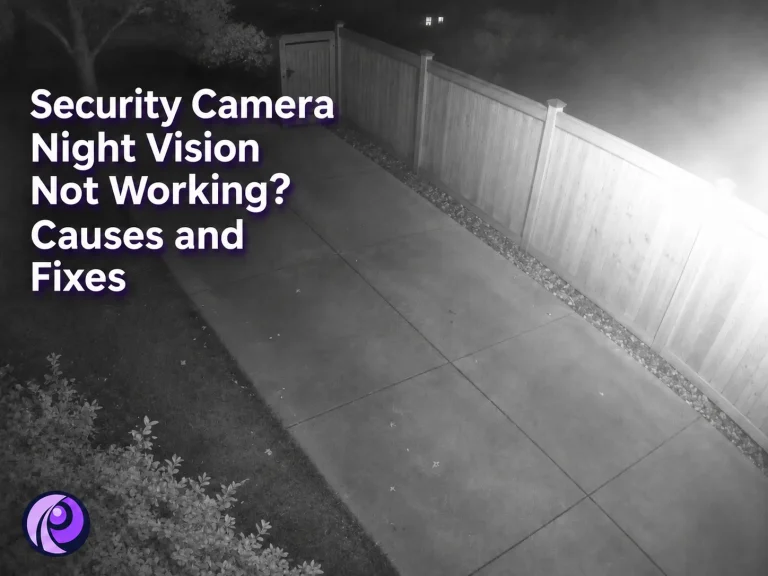
If your security camera night vision is not working, you have probably already seen one of three things: a dark picture after sunset, a washed-out white glare, or a camera that stays in black and white long after the sun is up. Each one points to a different part of the system, and most of them can be sorted out in a single evening without special tools.
This guide explains how night vision actually switches on, what each symptom means, and the order in which to check things so you do not waste time. If your tests show failed hardware, that is the point where a professional security camera installation visit makes more sense than another round of guessing.
How Camera Night Vision Switches On
Most security cameras see in the dark with built-in infrared (IR) LEDs. A light sensor on the camera decides when it is dark enough, the IR LEDs turn on, and a small mechanical filter (the IR cut filter) moves out of the way so the sensor can use that infrared light. Because the picture is built from infrared, it has no colour, which is why night footage looks black and white. Newer hybrid-light cameras can use a white light instead, and then the picture stays in colour.
That chain has four links: the light sensor, the IR LEDs, the filter and the settings that control them. A failure in any one of them looks like “night vision not working”, so the table below matches each symptom to its usual cause.
Why Is My Security Camera Black and White at Night?
A black and white picture after dark is how standard IR night vision works, so it is only a problem if the camera also stays that way in daylight. If your security camera is stuck in black and white during the day, the camera has not switched back to day mode, and there are three usual reasons.
- The mode is forced to Night. A camera set to Night (or Black and White) never returns to colour on its own. Set it back to Auto.
- The light sensor cannot see daylight. A dome cover that has shifted, a sticker, paint, or a spider web over the sensor can keep the camera in night mode. Clean it and check the cover is seated properly.
- The IR cut filter is stuck. If the filter does not move back, the picture looks washed out and tinted. This is a hardware fault, and the camera will need a repair or replacement.
If you actually want colour at night, check whether your camera has a white-light or hybrid-light mode. Standard IR cameras cannot produce colour in the dark, whatever the setting.
Security Camera Not Switching to Night Mode
When a camera does not switch to night mode in the evening, the cause is almost always the switching logic rather than the LEDs. Work through the checks below in order.
- Open the camera’s image settings and find the day/night switch. Common options are Day, Night, Auto and Scheduled. On Hikvision cameras this is usually under Configuration, Image, Display Settings. Menu names vary by model and firmware.
- Set it to Auto. Auto lets the light sensor decide. Some cameras also let you set a filter time (a delay before switching) and a sensitivity level, so a delay that is too long can make the camera look stuck at dusk.
- Run the cover test during the day. Cover the light sensor with a finger. The camera should switch to night mode, you should see a red glow from the IR LEDs and you may hear a faint click from the filter. On a dome, you may need to remove the cover first.
- Check what the camera is looking at. A camera that faces a streetlight, porch light or motion light may never get dark enough at the sensor to switch.
- Power-cycle the camera and update the firmware. A reboot clears temporary glitches, and a firmware update fixes known switching bugs on some models.
If the cover test does nothing at all, the camera is not reading its light sensor, which points to a hardware fault.
Security Camera IR Not Working
If the IR itself is not working, you will either see no red glow from the camera after dark, or the glow is there and the picture is still dark. The two cases have different causes.
No Infrared Glow at All
Look at the camera in the dark. Most IR LEDs show a faint red glow, though some “invisible” IR cameras show almost none, so use the cover test above as the real check. If the camera switches mode but the LEDs never light, the LEDs have failed, or the supplement light is switched off in settings. On hybrid-light cameras, check that the supplement light mode is not set to Off.
IR Is On but the Picture Is Still Dark
Infrared LEDs draw extra current, so a weak power supply, a long thin cable or an overloaded PoE switch can leave the camera underpowered at exactly the moment the IR turns on. The camera may reboot at night or the picture may dim. Also clean the lens and dome, because dirt and moisture on the glass degrade the image. Subjects that are simply too far away will also look dark, because IR light only reaches so far.
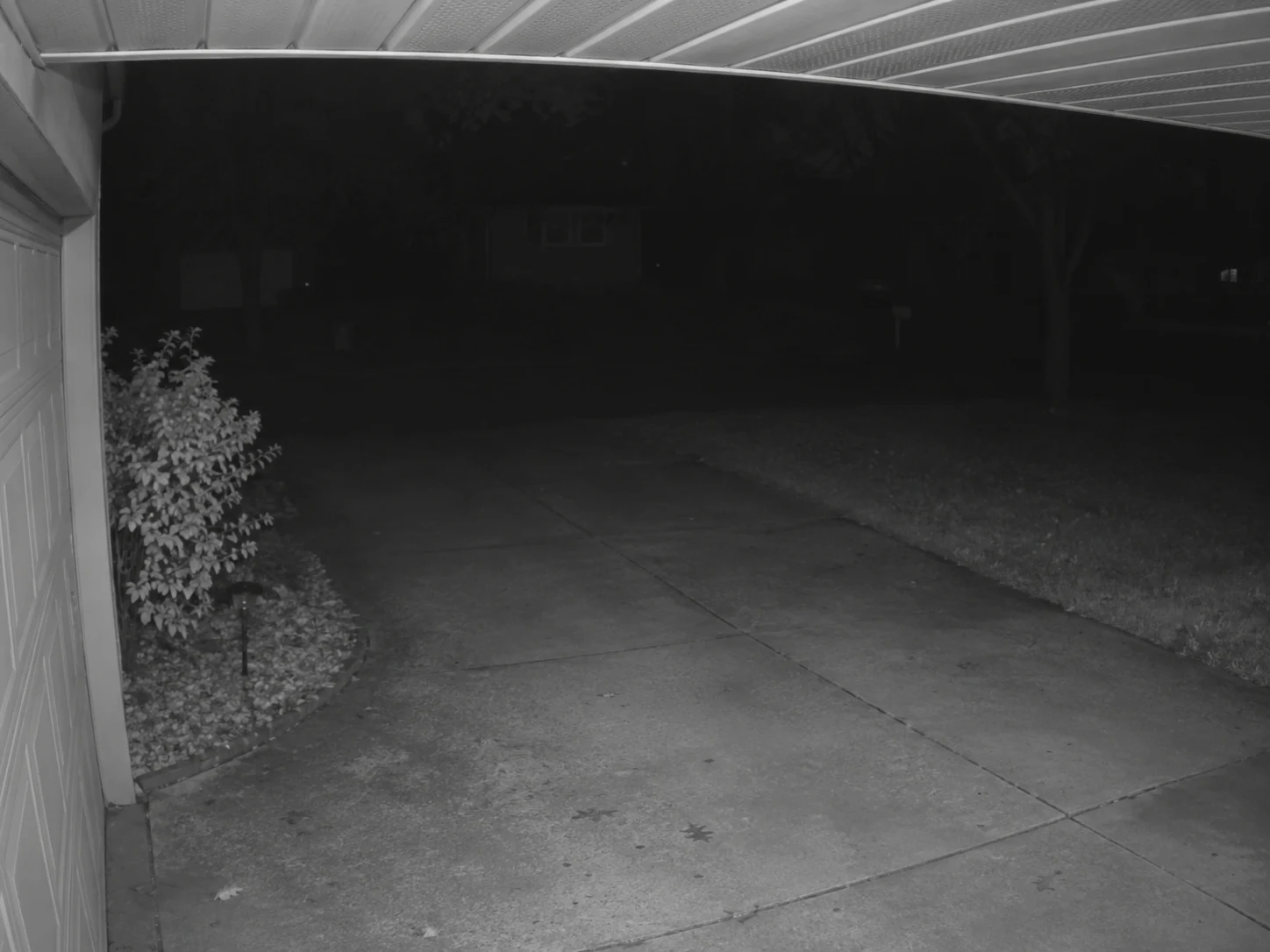
One Hikvision technical bulletin also suggests a quick exposure test for this case: set the shutter speed to 1/12 s, save, then move it to 1/30 s and see whether the picture clears. Treat that as a diagnostic step only, since a slow shutter blurs moving people.
Hikvision Night Vision Not Working
The checks are the same on Hikvision cameras, with a few model-specific points. Hybrid-light (ColorVu-style) models have a supplement light setting with IR, white light, Smart and Off modes, so a camera set to Off will have no night light at all. Auto mode on these models also has a filter time and sensitivity value that control when the light switches on. If none of the settings help and the camera is still under warranty, it helps to know how Hikvision support works in Canada before you start a repair request, because the process in Canada has its own steps.
White Glare on Security Camera at Night
A white blob, a hazy centre or a completely washed-out image is almost always IR light bouncing back into the lens. The IR LEDs sit right next to the lens, so anything close and reflective, even outside the frame, sends light straight back.
Season matters here. Snow and frost throw a lot of IR back at the lens, which is why a camera that looked fine in October can start to glare in January. We cover the wider picture in how Canadian winters affect security cameras, including ice and condensation on the housing.
CCTV Camera Grainy at Night
A grainy picture is not always a fault. When there is little light, the camera raises its sensitivity to brighten the image, and that adds noise. It becomes a problem when the grain is heavy on subjects that should be well lit by the IR.
- Check the distance. Stand close to the camera and then walk away. If the picture is clean near the camera and grainy farther out, the subject is outside the useful IR range.
- Add light where it matters. A motion light or a steady white light on the area improves detail far more than any setting change, and it lets some cameras stay in colour.
- Rule out the basics. Clean the lens, confirm stable power and make sure the camera is not working at a very wide angle with a distant subject.
- Know the camera’s limits. Entry-level cameras have small, less sensitive sensors, so they struggle in low light however you set them up.
When to Call a Technician
Settings, cleaning and a power check are safe to do yourself. Some faults are not, and a technician saves time when:
- The cover test does nothing, or the red glow never appears, which suggests failed hardware.
- The camera stays black and white in daylight even when set to Auto, or the picture is tinted.
- Several cameras lose night vision at once, which points to shared power or network equipment.
- The camera is mounted high, on a roofline or in a place where a ladder would be unsafe.
- The glare comes from the way the camera was positioned, and moving it means new cable or a new mount.
- You need evidence-quality night footage for a business, a parking area or an insurance claim.
Our troubleshooting and repair team checks power, settings and camera hardware on site and tells you honestly whether a repair or replacement makes sense. If the cameras are due for an upgrade, we handle the full security camera installation across the GTA. Call us to book a visit.